Turn a Pool Studio design into a video
Updated
4 min read
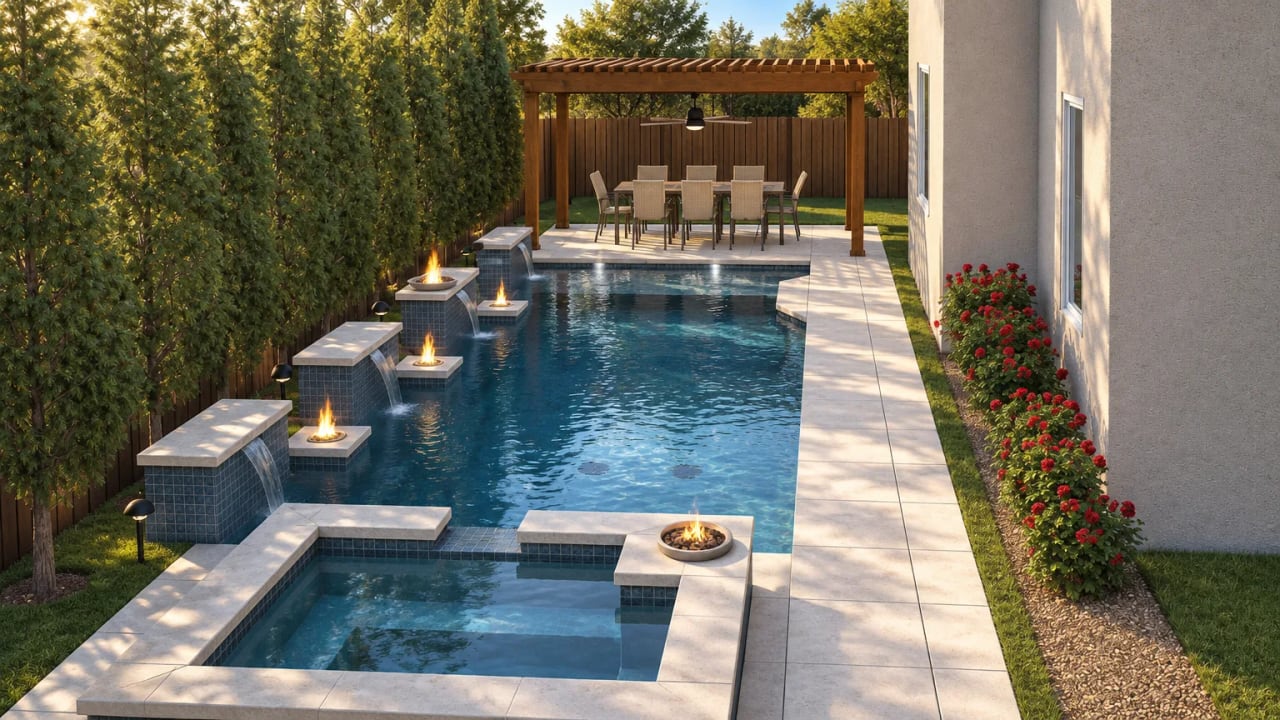
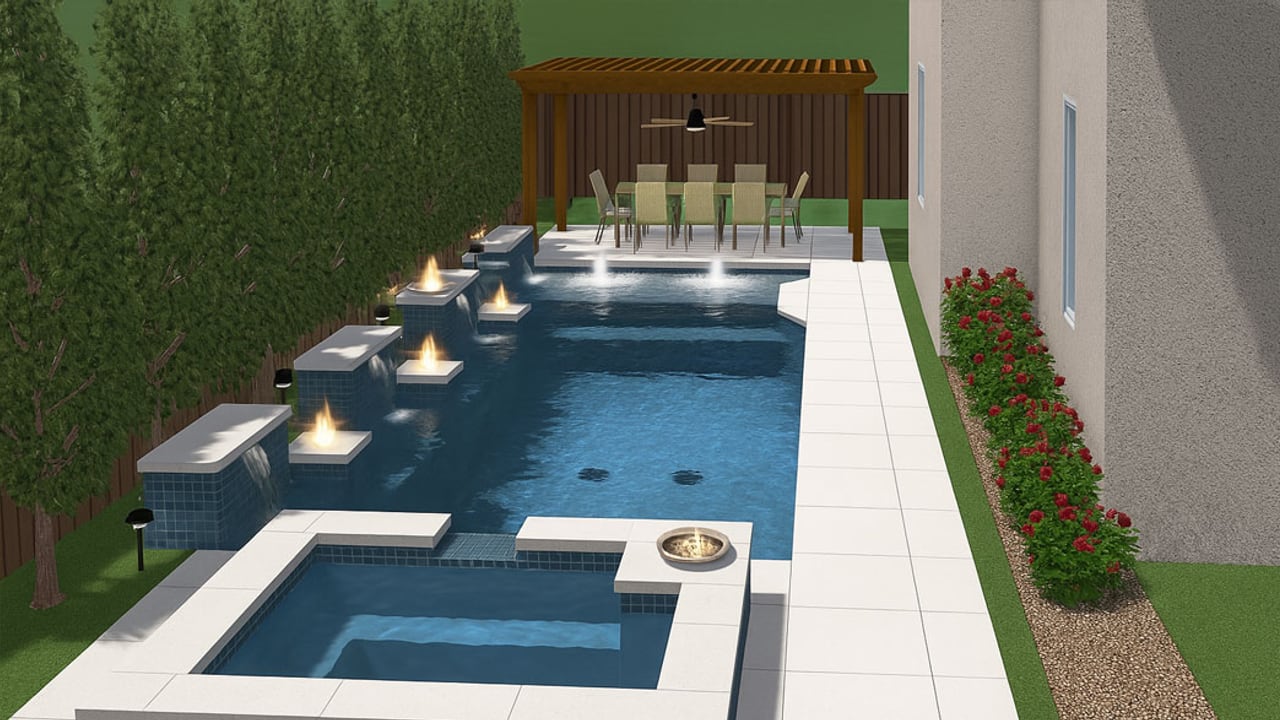
Pool Studio, Vip3D, and VizTerra all export high-resolution stills. Those stills are what RenderSplash needs. Export one image per camera angle you want in the video, upload them, and a Walkthrough comes back in about 100 seconds.
Exporting from Pool Studio or Vip3D
Pool Studio and Vip3D (both from Structure Studios) share the same rendering engine and export options. Version 4 added Path Tracing for higher-quality stills. For a deeper look at Photo Mode settings and what each option changes about a render, the blog post on exporting from Pool Studio, Vip3D, and SketchUp covers each one in detail.
For still images:
- Open your design in the 3D view.
- Position the camera at the angle you want. Four to six angles is a solid starting point: full pool from eye level, the entry view from the gate, a close-up of any water features, and an elevated shot showing the whole footprint.
- Use Photo Mode to render the still. Path Tracing gives the most photorealistic result; Standard Real-Time renders faster.
- Save as JPG or PNG at the highest resolution available. Pool Studio can produce up to 8K.
- Repeat for each angle.
For the 2D plan (optional): Use File > Export > 2D Image (.png) or File > Export > PDF to export the overhead plan. Including it helps RenderSplash understand the site geometry and produce more accurate camera paths.
For a flythrough video (optional): If you've produced a flythrough in the software's built-in Media Viewer, export it as MP4. RenderSplash can use it as a reference for camera movement.
Structure Studios documentation: Exporting and Importing
Exporting from VizTerra
VizTerra (also from Structure Studios) uses the same export paths as Pool Studio and Vip3D. Use Photo Mode for stills, same image export options apply.
Exporting from other design software
Any software that exports a rendered JPG or PNG works. Common export paths:
- SketchUp: File > Export > 2D Graphic. Set the resolution in the Export Options dialog.
- Chief Architect: File > Export > Export Picture.
- Lumion: Use Lumion's Photo render mode. Export as JPG or PNG at 1080p or higher.
- AutoCAD: Use the Render panel and export the result as a standard image file.
See works with for step-by-step export paths for each tool.
What file format to use
JPG, PNG or WebP all work. PNG keeps more detail if you have the choice, but the quality of the render matters far more than the format.
Each image can be up to 25 MB, and you can add up to 12 files, site photos included. A 4K still is well under the limit. If your software outputs large TIF or BMP files by default, use its export options to save as JPG or PNG instead.
Uploading to RenderSplash
Once you have your exports:
- Sign in at rendersplash.com or create a free account.
- Start a new project for the job.
- Drag in your rendered stills. Add the 2D plan (PDF, PNG or DXF) too if you have one.
- Pick a quality. Draft (360p) is the fastest and costs the fewest credits; HD and above cost more. See pricing.
- Start the Walkthrough. Most are ready in about 100 seconds.
See what you can upload for the full spec table.
Common questions
Does RenderSplash work with Pool Studio?
Yes. Export stills from Pool Studio, Vip3D or VizTerra the way this guide shows and upload them. There's no plugin to install and nothing to connect.
How many renders should I upload?
Four to six is a good start. Each render is a camera angle the film can use, so more angles give it more to cut between. With one or two, the Walkthrough stays close to those views.
Does the render quality affect the video?
Yes. The film is drawn from what's in your stills, so a Path Traced render gives a cleaner result than a quick real-time one. Start with the best render your software makes.
Sources
- Structure Studios, Pool Studio product page
- Structure Studios, Exporting and Importing
- Structure Studios, Version 4 announcement
Common questions
Does RenderSplash work with Pool Studio?
Yes. Export a rendered still from Pool Studio, Vip3D, or VizTerra and upload it. No plugin or integration needed.
Does RenderSplash work with SketchUp?
Yes. Use File > Export > 2D Graphic in SketchUp, upload the image, and RenderSplash works with it directly. No plugin needed.
How many renders should I upload?
Four to six is a good start. Each render is a camera angle the video can use, so more angles give it more to cut between. With one or two, the Walkthrough stays close to those views.
Does the render quality affect the video quality?
Yes. A Path-Traced render from Pool Studio produces a cleaner result than a Standard Real-Time render, because the key frames RenderSplash draws are based on what is in your stills. Start with the best render your software produces.
My software isn't listed here. Can I still use it?
If it exports a JPG or PNG of a rendered view, yes. See works with for the full list. If you're not sure about your software's exports, email support@rendersplash.com.
Try it on a real job
Upload a render and see your design as a film. 30 free credits to start, no card.
Get started free